Capturing a great post-match interview is a rush. However, the excitement often comes with a major technical problem: terrible audio. Roaring crowds, stadium wind, and distant microphones can turn a winning quote into an unusable mess. Fortunately, you no longer need an expensive studio to achieve professional sound.
This guide breaks down the top 5 free audio editing tools for 2026. We will show you which tool is best for your specific situation, from quick AI fixes to detailed manual editing. Consequently, you can ensure every word from the player or coach is clear.
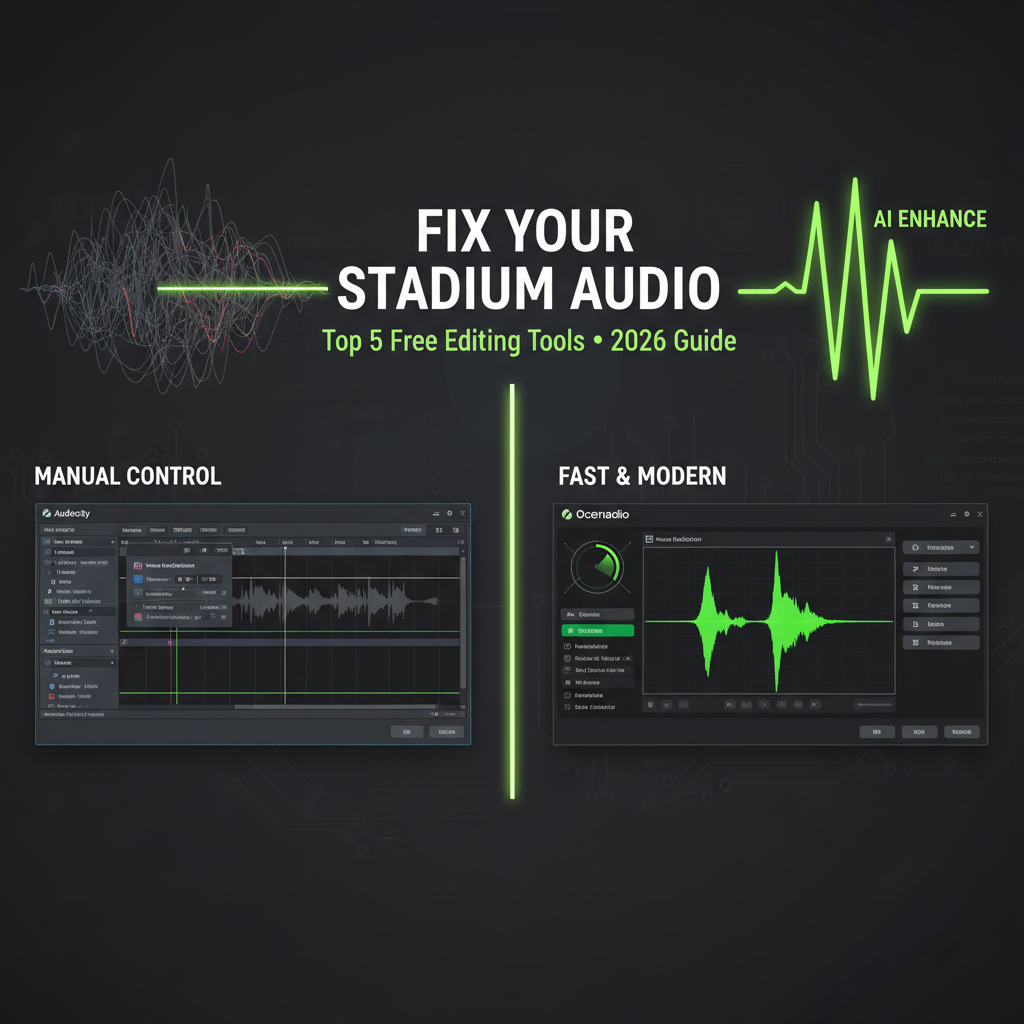
1. Adobe Podcast (Enhance Speech): The One-Click Wonder
Best for: Instantly turning stadium noise into studio-quality sound.

Adobe Podcast’s “Enhance Speech” is a game-changer for content creators. This web-based tool uses powerful AI trained specifically on speech. It intelligently identifies the human voice, reconstructs it, and effectively removes distracting background noise like crowd chants and PA system echoes. Therefore, it’s perfect for interviews recorded on a phone in a loud environment.
- Free Tier: You can process up to one hour of audio daily. Files are limited to 30 minutes in length and 500MB.
- Why it Works: It’s incredibly simple. You just upload your noisy file, and the AI does all the heavy lifting.
2. Audacity: The Classic Manual Editor
Best for: Precise control and editing of longer audio files without limits.
Audacity is the most well-known open-source audio editor for a reason. While it lacks a single “magic” AI button, its traditional tools are powerful and reliable. For instance, the “Noise Reduction” effect is excellent for removing consistent background hiss or hum. The “Compressor” helps even out volume levels.
- Free Tier: Audacity is completely free, with no usage limits or restrictions.
- Why it Works: It gives you complete control. You can manually cut out specific mistakes or apply precise equalization (EQ) to boost a muffled voice.
3. Auphonic: The Automated Sound Engineer
Best for: Automatically leveling volumes and polishing the final audio.
Think of Auphonic as your personal AI sound engineer. Its greatest strength is “Loudness Normalization.” This feature ensures the interviewer and the athlete are at the same volume, a common issue when sharing a single microphone. In addition, its Adaptive Leveler smooths out sudden volume spikes, like a player shouting in excitement.
Deep Dive
It professionally balances your audio and optimizes it for streaming platforms like Spotify and Apple Podcasts. You can learn more about its process on the Auphonic official blog.
4. ElevenLabs Voice Isolator: The Extreme Noise Specialist
Best for: Salvaging audio recorded in extremely noisy conditions.
While famous for its AI voices, ElevenLabs also offers a world-class Voice Isolator tool. This is your ultimate weapon against the most challenging audio problems. For example, if your interview was ruined by heavy wind, rain, or even overlapping voices, this tool can surgically strip away the noise while preserving the natural character of the speaker’s voice.
Note: The free plan uses a credit system (~10 mins/month).
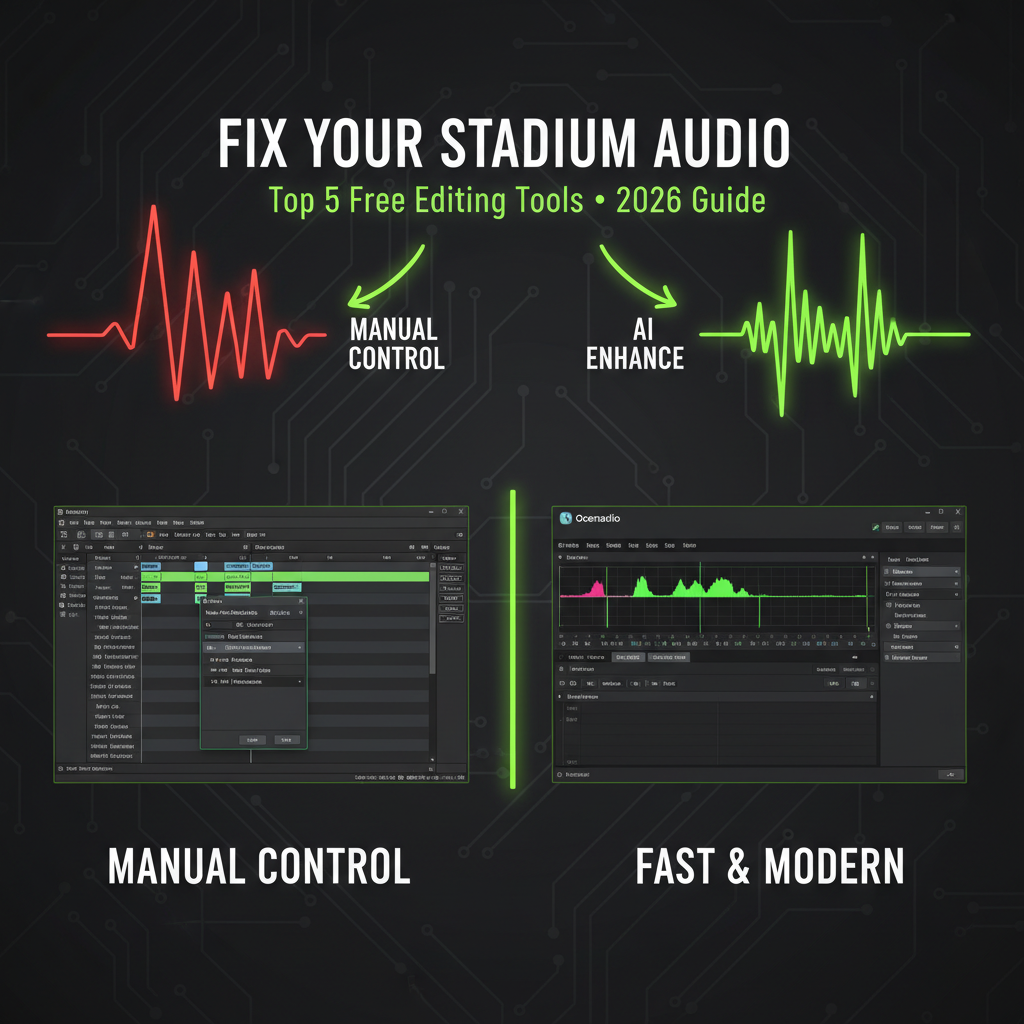
5. Ocenaudio: The Fast and Lightweight Alternative
Best for: Quick, simple edits and previews on any laptop.
If you find Audacity’s interface a bit overwhelming, Ocenaudio is a fantastic alternative. It’s a streamlined, modern audio editor that is incredibly fast and efficient. Its standout feature is the real-time preview; you can hear the effect of a noise gate or EQ as you adjust it.
Pro Tip: Editing Audio in Video Files
Do you need to clean up the audio on a video file? If you are a Windows user, you have a powerful tool already built-in. Microsoft Clipchamp now includes an AI “Noise Suppression” feature. You can find it in the audio tab, and it allows you to clean up your interview audio without ever separating it from the video.
Repair & Clean
Use noise reduction to remove background hums and high-pass filters to cut low-end stadium rumble.
Equalize (EQ)
Cut “boxy” sounds (300-500Hz) and boost presence (3-5kHz) to make voices clearer.
Dynamic Control
Apply a 4:1 compressor ratio to balance shouting players and quiet interviewers.
Conclusion
You no longer have to let a roaring stadium ruin your content. With powerful and free audio editing tools like Adobe Podcast for quick AI fixes and Audacity for detailed control, achieving crystal-clear interview audio is easier than ever. By choosing the right tool for the job and following a simple post-production workflow, you can ensure your audience hears every insightful word. Now, you can focus less on technical issues and more on capturing that perfect post-match moment.