Automate Sports Scores
Create professional, instant match graphics with the power of Zapier and Canva.
In the fast-paced world of sports, every second counts. Fans across the globe, from London to Lagos, expect instant updates the moment the final whistle blows.
Manually creating graphics for every match result is a time-consuming task that can leave you behind the competition. Fortunately, there’s a smarter way. By combining the design power of Canva with the workflow automation of Zapier, you can achieve true digital efficiency and generate full-time score graphics automatically.
This guide will show you exactly how to set up a system that transforms your data into shareable, on-brand visuals instantly. Say goodbye to manual updates and hello to a seamless, automated content machine.
Preparing for Automation: Your Data and Design
Before you can build your automated workflow, you need two key components: a reliable data source and a dynamic Canva template. Getting these right is the foundation for a smooth process.
Choose Your Data Source
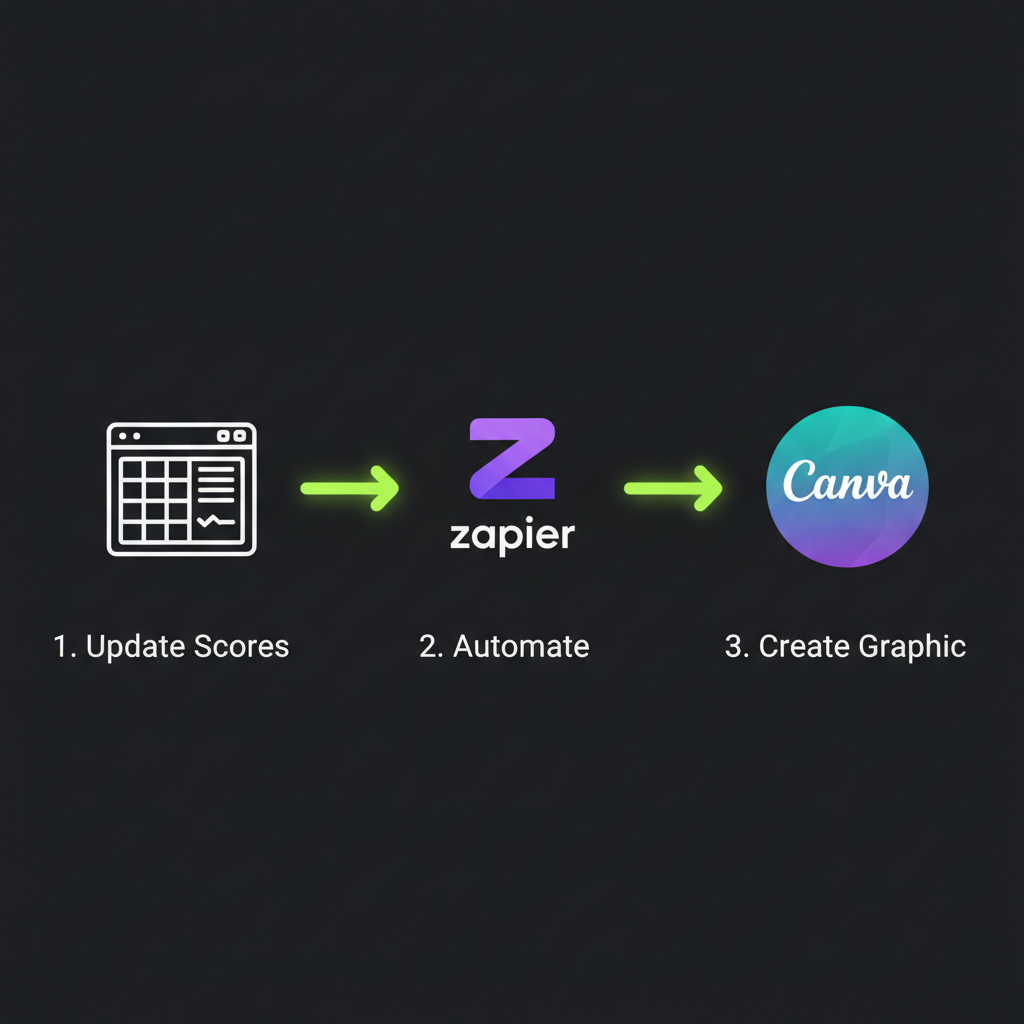
First, you need a central place where your scores are updated. Zapier can connect to thousands of apps, but a simple and effective choice is a spreadsheet.
- Google Sheets or Airtable: Create a sheet with columns for essential information like “Home Team,” “Away Team,” “Home Score,” “Away Score,” and “Match Status.
- Sports Data APIs: For true real-time updates, you could use a direct integration with a sports data provider. For more information on how Zapier connects with various apps, you can explore their integrations page.
Design a Dynamic Canva Template
Log in to your Canva account and design a graphic for your score updates. Crucially, you must use text boxes for the parts of the graphic that will change. For example, have separate text boxes for the home team’s name and the home team’s score. These will act as placeholders. Canva’s Autofill API allows Zapier to populate these specific fields without disturbing the rest of your design.
Building Your Automated Zap: A Step-by-Step Guide
With your data source and Canva template ready, it’s time to connect them using Zapier. This automated workflow is called a “Zap.”
Set Your Trigger
Select your data source app (e.g., Google Sheets). Choose “New or Updated Spreadsheet Row” to initiate the process.
Choose Your Action
Select Canva as your action app and choose “Create Design.” This generates a new graphic per trigger.
3. Map Your Data Fields: This is the most important step. Zapier will show you the placeholder fields from your Canva template. You must map the data from your trigger to the corresponding fields in your Canva design. For instance, link the “Home Score” column from your sheet to the “Home Score” text field in your Canva template.
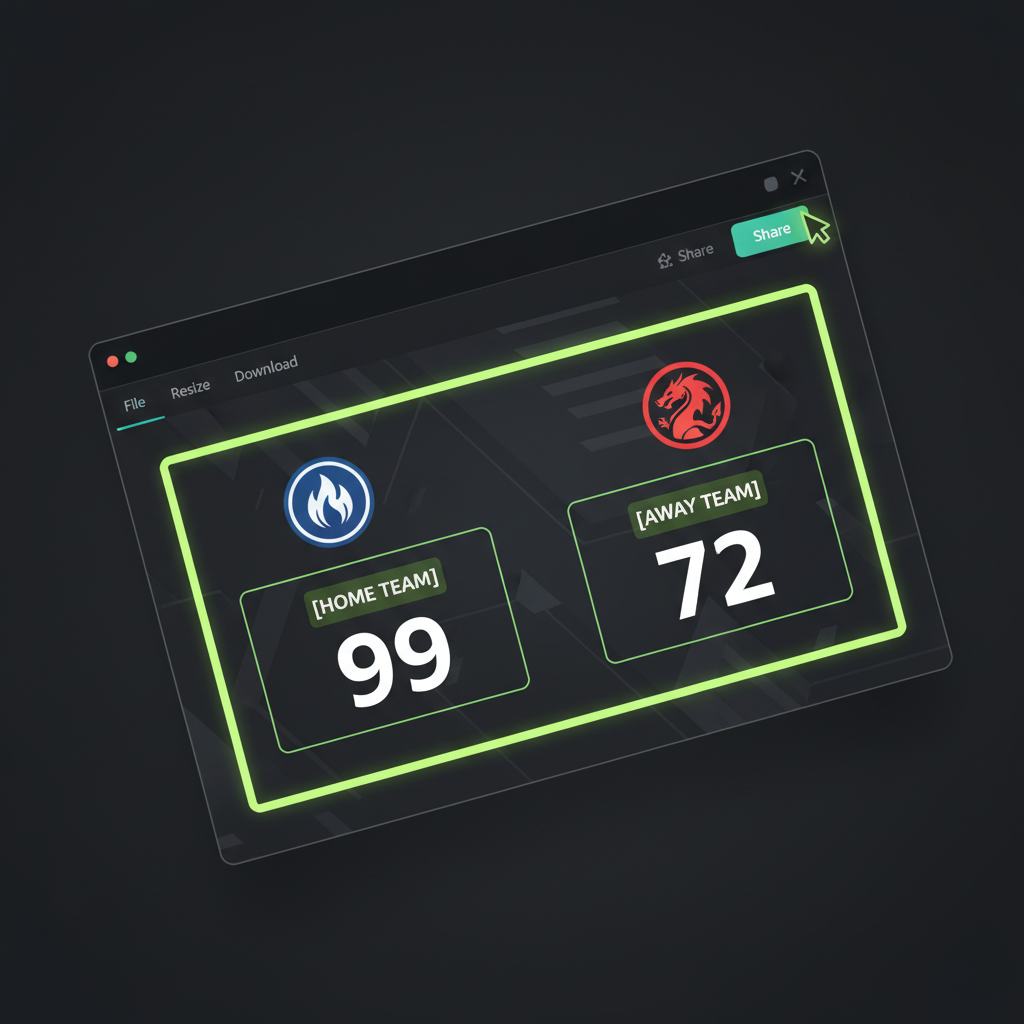
4. Test Your Zap: Zapier allows you to test the workflow to ensure it’s working correctly. It will pull data from your spreadsheet, send it to Canva, and generate a test image.
5. Add a Distribution Step: Once the graphic is created, you can automatically post the image directly to your X, Facebook, or Instagram accounts, or save it to a cloud folder.
Best Practices and Powerful Alternatives
To get the most out of your automation, keep a few best practices in mind. Also, understand when you might need a more specialized tool.
Tips for a Robust Workflow
For seamless updates, consider storing the unique Canva Design ID in your spreadsheet. When Zapier creates a design, it can return this ID. Saving it allows you to reference that specific design later. For a deep dive into creating templates, check out the official Canva blog.
Exploring Advanced Alternatives
While the Zapier and Canva combination is powerful, Canva’s native integration is primarily built for creating new designs from templates. For highly dynamic needs, such as live in-game score overlays, you might explore tools like Switchboard Canvas.
These API-driven image generation tools offer more advanced control, allowing for real-time text updates within a single image and creating responsive templates that automatically adjust elements.
Conclusion: Work Smarter, Not Harder
Automating your full-time score updates with Zapier and Canva is a game-changer for digital efficiency. It saves you valuable time, eliminates the risk of manual errors, and ensures your audience receives timely, professional-looking graphics. This allows you to focus on what truly matters: engaging with your community and celebrating the final score.